ECON 238 · Environmental Economics · Fall 2026

SHOW ME Museum

Our virtual environmental-economics hallway: two exhibits from every student, one chosen from the class list and one created by the student.

Two Museum entries per studentOne CLASS LIST exhibit + one MY OWN exhibit.
Resubmitting updatesSubmit the same slot again and your newer accepted entry replaces the old one.
The bot checks your linksDead, private, repository-only, and malformed links are rejected before they enter the Museum.

BEFORE YOU SUBMIT

Open both URLs in a private/incognito browser window. If you cannot see them without logging in, neither can the Museum.

✓ PAGE LOADS✓ COVER IMAGE LOADS✓ EXACT EXHIBIT PAGE

SUBMIT / UPDATE MY EXHIBIT →

Submit / update an exhibit

Fill this out HERE. GitHub is only the final confirmation click.

Leave blank for MY OWN.

What happens next: GitHub opens in a new tab with everything already filled in. Do not change the title or headings. Click Submit new issue. Wait about 10–20 seconds for the bot to post MUSEUM ADDED or MUSEUM UPDATED. Then close the GitHub tab and refresh the Museum.

Loading Museum…
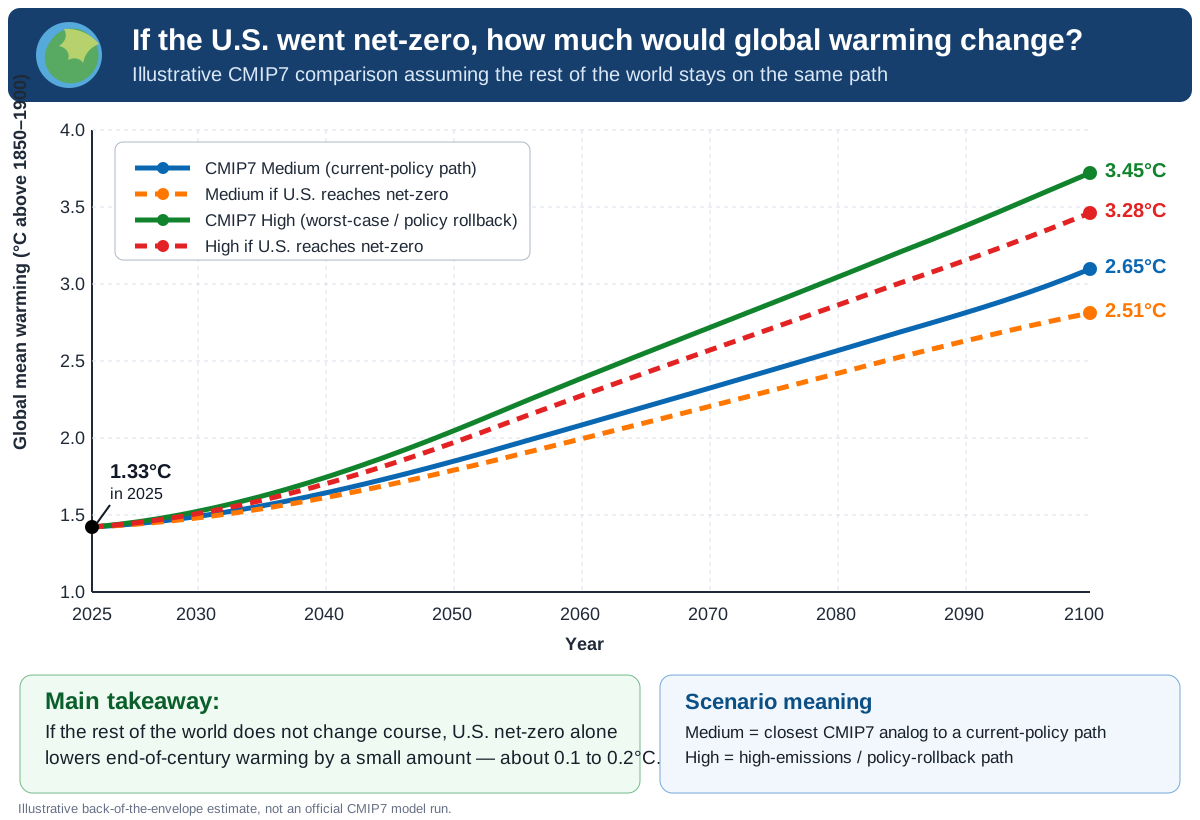
CMIP7 U.S. net-zero climate example chart
FEATURED EXAMPLEClimate & Models

If the U.S. went net-zero, how much would global warming change?

Even the huge, heroic task of taking the entire U.S. to net-zero has only a very small effect on the future global temperature path if the rest of the world stays on the same course.

Course example · Does not count as a student submission
VIEW EXAMPLE →

How Museum submission works

1. Finish your public exhibit. 2. Fill out the Museum form above. 3. Click CONTINUE TO GITHUB. 4. GitHub opens with the submission already filled in. 5. Click Submit new issue and wait for the confirmation comment.

The Museum automation verifies that your class-list topic belongs to your GitHub account, or that you have an active student-created topic. It then checks that your exhibit and cover image are actually public. If everything passes, it adds your card automatically and leaves a confirmation receipt on your GitHub issue.

Troubleshooting FAQ

My exhibit says 404.
GitHub Pages can take a minute or two to publish after a change. Wait briefly and refresh. If it still fails, confirm that Pages is enabled and that you are using the public webpage URL rather than a repository/file URL.
It works for me, but the Museum submission rejects it.
Open the exact URL in a private/incognito window. If you are asked to sign in, or if the page only works while you are logged into GitHub, it is not public.
The bot says I submitted a GitHub repository instead of a webpage.
A URL beginning with github.com/... is usually the repository or file view. The Museum needs the actual published site, normally something like https://username.github.io/repository/....
My cover image is broken.
Open the cover-image URL directly in a private/incognito window. You should see only the image. GitHub filenames are case-sensitive: Graph.PNG and graph.png are different files.
My webpage loads, but some images inside it are missing.
Check every image path and filename, especially capitalization. Do not link to files that exist only on your laptop. All exhibit assets need to live in the public repository/site.
I submitted the wrong URL, title, hook, or cover image.
Submit the same exhibit slot again. A new accepted CLASS LIST submission replaces your old CLASS LIST entry; a new accepted MY OWN submission replaces your old MY OWN entry. You do not need anyone to delete the old card first.
I accidentally submitted my CLASS LIST exhibit as MY OWN, or vice versa.
Submit it again using the correct exhibit type. The automation checks your topic reservation and will place it into the correct slot once the submission is valid.
The Museum still shows my old version.
The submission bot can finish before GitHub Pages republishes the site. Refresh after a minute or two. Your GitHub confirmation issue is the authoritative receipt that the update was accepted.
The bot says my class-list Topic ID does not belong to me.
Return to the SHOW ME topic-claim page and check the exact Topic ID you reserved. The Museum will only accept the numbered topic currently claimed by your GitHub account.
The bot says it cannot find my student-created topic.
You must first use Create a Topic on My Own on the SHOW ME claim page. Once that reservation exists under the same GitHub account, submit the finished MY OWN exhibit again.
I changed my exhibit after submitting it. Do I have to submit again?
If the URL stays exactly the same, your live webpage updates automatically and the Museum card does not need to change. Resubmit only if the Museum title, hook, cover image, or public URL needs to change.
I cannot get GitHub working and the deadline is arriving.
Use the emergency backup procedure immediately. Do not lose a deadline fighting a technical problem.

EMERGENCY BACKUP — IF THE PUBLIC PAGE WILL NOT WORK

A technical problem is not a reason to miss the deadline.

  1. Export your finished exhibit as a PDF.
  2. Upload that PDF to the SHOW ME Museum Backup submission on Blackboard before the deadline.
  3. In the Blackboard submission include your GitHub username, exhibit title, whether it is CLASS LIST or MY OWN, your repository URL, and the public webpage URL you were trying to publish.
  4. Your Blackboard submission time becomes your technical-backup timestamp. Repair the public version afterward and then submit/update it to the Museum.

Do not email the professor or TAs merely to preserve the deadline. Use the Blackboard backup first; that is what it is for.